How to defragment a hard drive the right way

How to defragment a hard drive:
- Step 1.Download Disk Defrag application. Special offer. See more information about Auslogics, Uninstall instructions, EULA and Privacy Policy.
- Step 2.Install and launch the application.
- Step 3.Run a scan to check drives for fragmentation
- Step 4.Click the Defrag button and watch your files put back together on the cluster map
| Compatibility | Win 11, 10, 8, 7 |
| Download Size | 23.6 MB for HDD 24.5 MB for SDD |
| Requirements | 300 MHz Processor, 256 MB RAM, 50 MB HDD |
Limitations: trial version offers an unlimited number of scans, backups and restores of your Windows system elements for free. Registration for the full version starts from USD 19.33

Outbyte PC Repair (version %productVersion%) is certified by AppEsteem – a trusted cybersecurity organization – with ongoing monitoring.
Being able to meet all of AppEsteem’s strict requirements means that Outbyte PC Repair can be considered clean, safe, and transparent; and that it is compliant with the ethical and legal norms of distribution.
AppEsteem is one of the world’s most prominent cybersecurity organizations that contributes to the safety of more than 2 billion users. The company was founded by a team of experienced Microsoft cybersecurity specialists. Its mission is to create a safe space for computer and internet users where they are protected against cyber threats and deceptive or unethical practices.
Disk fragmentation slows systems and complicates file access. This article explains what disk defragmentation is, when you should defragment a hard drive, and how to run a disk defrag.
Contents
[hide]What is fragmentation
Disk fragmentation is a process that happens on both HDDs and SSDs, where files get split into pieces across the drive. Over time, those pieces scatter, and the drive head (or the controller on an SSD) must work harder to read a single file.
How files become fragmented
File fragmentation occurs when files are frequently deleted, modified, or grow in size, leaving gaps on the drive. When a new or an updated file needs to be saved and there isn’t a single contiguous large enough free space, the file system breaks the file into smaller chunks, or fragments, and stores them in available gaps.
What is defragmentation and why it matters
Disk defragmentation is the reverse process that collects and reorders those pieces and writes them back. Essentially, the disk defrag meaning comes down to grouping related data together for faster access.
For traditional hard disk drives, the benefit is clear: fewer mechanical moves translate into quicker reads and smoother multitasking. However, SSDs are different: they manage wear and block allocation internally and have a limited number of write cycles. Because of this, defragmentation, being a write-intensive process, can do more harm than good. That’s why you shouldn’t defrag an SSD—use TRIM and SSD-specific optimization instead to avoid unnecessary writes.
When to defragment a hard drive
Deciding whether to run a disk defragmenter largely depends on your workload. Here are the typical signs that your drive needs defragmentation:
- You notice slower file open/save times.
- Your OS takes longer to boot than usual.
- Applications and programs launch slower than they used to.
- Copying or moving files takes noticeably more time than before.
How to defragment a hard drive
You can defrag an HDD using the Windows built-in program—Defragment and Optimize Drives—or with a third-party tool. While the built-in option may be more convenient for basic maintenance, a dedicated utility like Auslogics Disk Defrag or Defraggler can offer more customization options and useful extras.
Here’s how to use Defragment and Optimize Drives:
- Click Start, type Defragment and Optimize Drives, and press Enter.
- Select the drive you want to maintain (usually C: for the system drive).
- Click Analyze to see current fragmentation levels.
- If analysis shows fragmentation over 10–15%, click Optimize.
(For SSDs, clicking Optimize triggers TRIM and SSD-aware routines rather than a full defrag.) - If you want to automate the process, click Change settings, set a schedule (weekly is a good default), and choose drives to include.
Auslogics Disk Defrag
Auslogics Disk Defrag is a reliable option for keeping your drives organized. Here are its key highlights:
- Fast defragmentation engine that reduces pass time on large volumes.
- Option to defragment files and folders and consolidate free space to reduce future fragmentation.
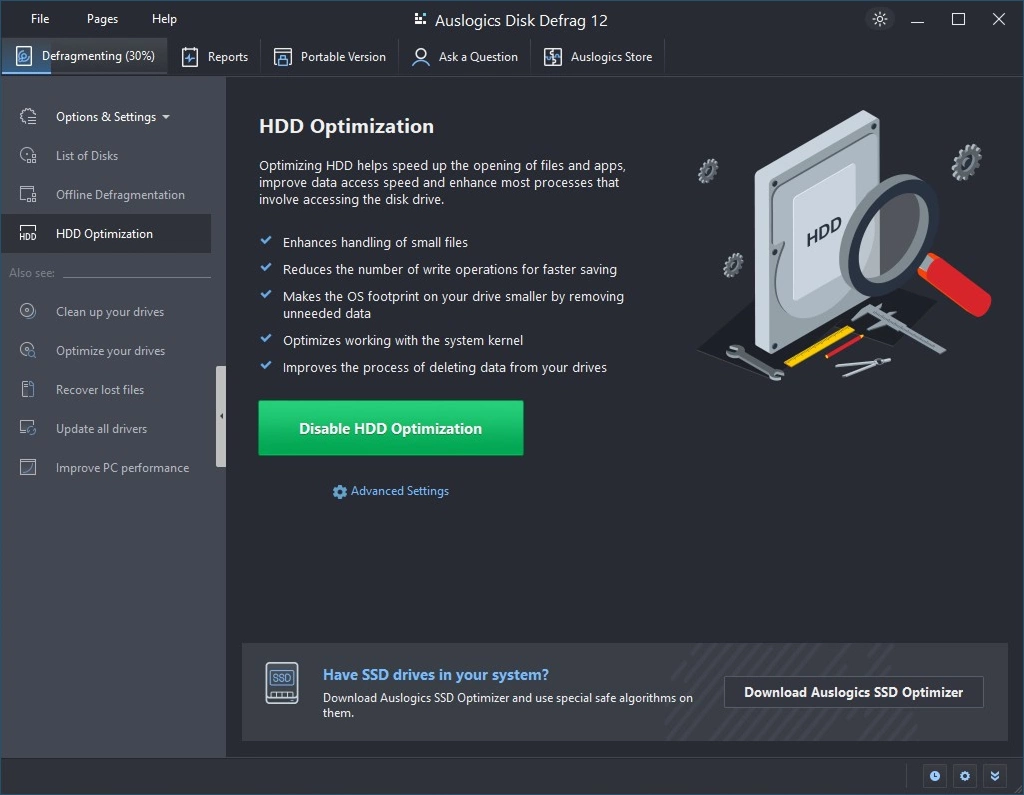
- HDD optimization that improves performance by enhancing small file handling and speeding up write operations.
- Portable version for those who need a tool on a USB stick.
- Scheduling and background defrag for regular maintenance.
- Disk cleanup before defragmentation to free up space on the drive.
- Expert help via the Ask a Question forum.
The free Disk Defrag 12 version offers state-of-the-art defragmentation with an ultra-fast engine, while Disk Defrag Pro (the full version) provides full access to all features. Here’s how to use the tool:
- Install Disc Defrag 12 application.
Special offer. See more information about Auslogics; uninstall instructions; EULA; Privacy Policy. - Install and launch the application.
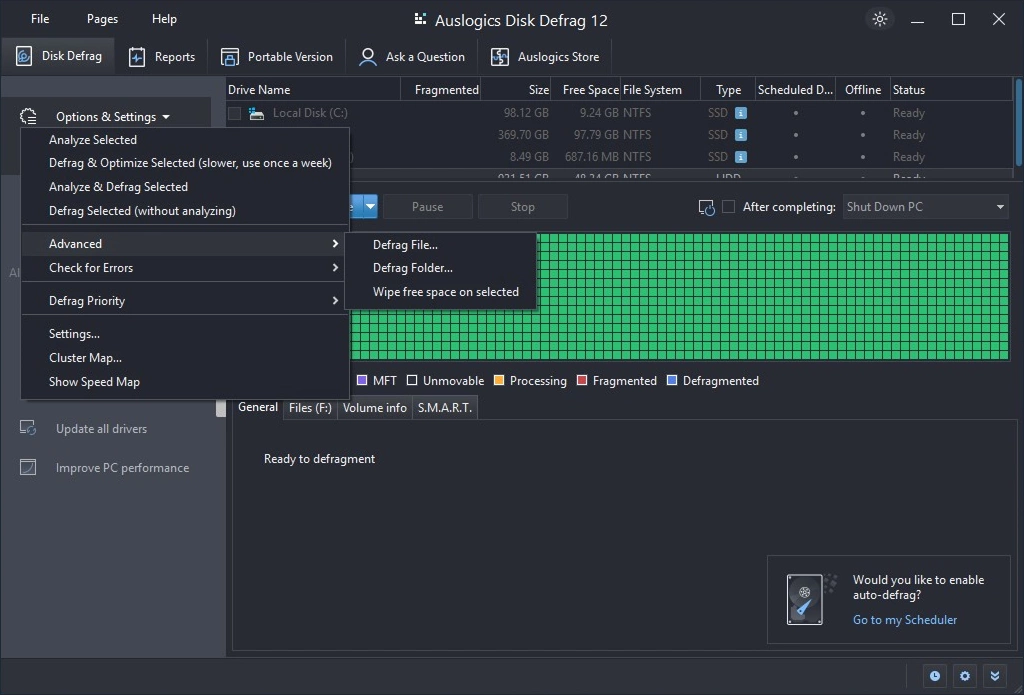
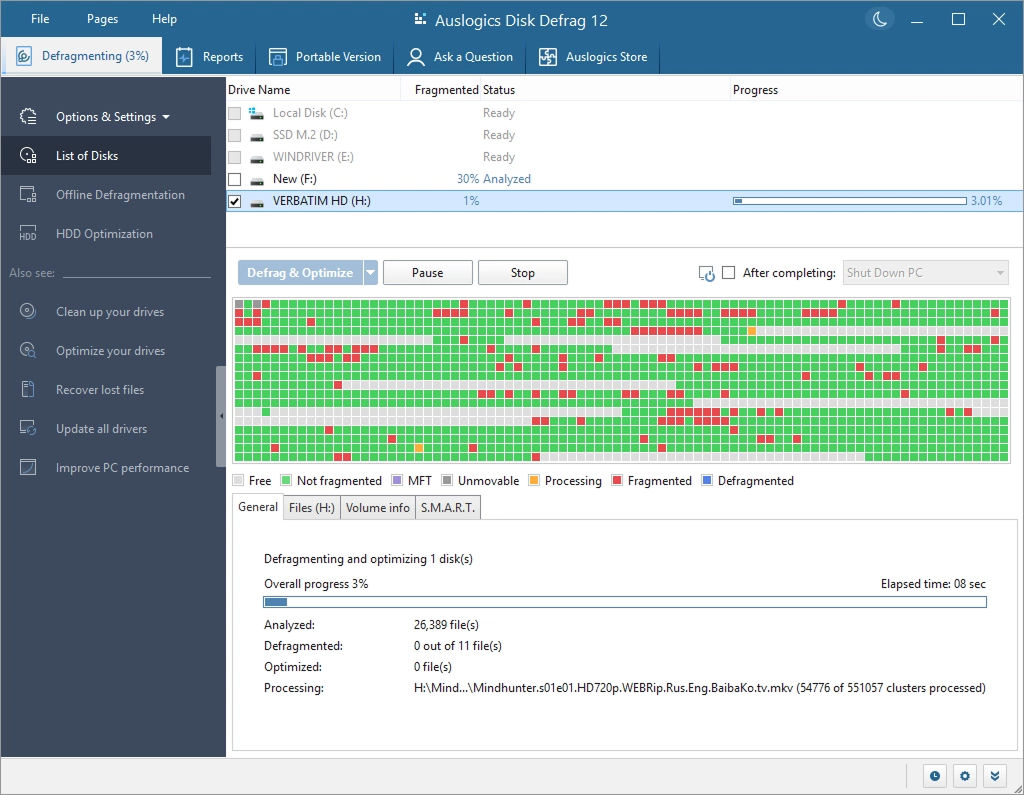
- Click Analyze to see current fragmentation levels.
- If analysis shows fragmentation over 10–15%, click Defrag & Optimize. The app will rearrange fragmented files in real time.
- To automate the process, go to File → Automatic Maintenance and set up the desired schedule.
- To run defrag in the background, click Offline Defragmentation on the main screen and set up your preferences.
- To speed up drive performance, click HDD Optimization and enable it.
- You can also defrag individual files and folders, customize the defragmentation algorithm, add Disk Defrag to the Windows context menu, set up ignore lists, and more via Settings.
Should I defragment an SSD?
Disc defragmentation is bad for SSDs, as it involves heavy writes. If your solid-state drive shows symptoms similar to the ones mentioned above, you should prefer tools that are specifically designed for SSD optimization. The built-in Defragment and Optimize Drives tool will do for basic SSD maintenance, but it lacks the options a reputable third-party tool can offer.
Auslogics SSD Optimizer
For comprehensive solid-state drive care, choose Auslogics SSD Optimizer. It’s a dedicated tool built to maintain SSD health. Here’s how to use it:
- Download and install Auslogics SSD Optimizer.
- Launch the application.
- Click Analyze to check drive status and optimization recommendations.
- If the analysis recommends optimization, click Optimize. The tool will run SSD-aware routines that improve performance without unnecessary rewrites.
- To automate the process, go to File → Automatic Maintenance and set up the desired schedule.
- With SSD Optimizer, you can also run system optimization, customize the optimization algorithm, set up ignore lists, and more.
Defragment your drive the right way
Regular maintenance with a reputable disk defragmenter like Auslogics Disk Defrag will help keep your files grouped, shorten access times, and make overall performance smoother. Remember to analyze your drive for fragmentation before running disk defrag on a PC and aim to defragment when fragmentation levels are roughly 10–15% or higher. Finally, avoid defragmenting SSDs—use TRIM and SSD-aware tools like Auslogics SSD Optimizer instead to extend their life.